How to Change Your Minecraft Skin on Java and Bedrock
On Java, open the launcher's Skins tab and click New skin. On Bedrock, import a PNG in the Dressing Room. Classic or slim arms, consoles, safe downloads.
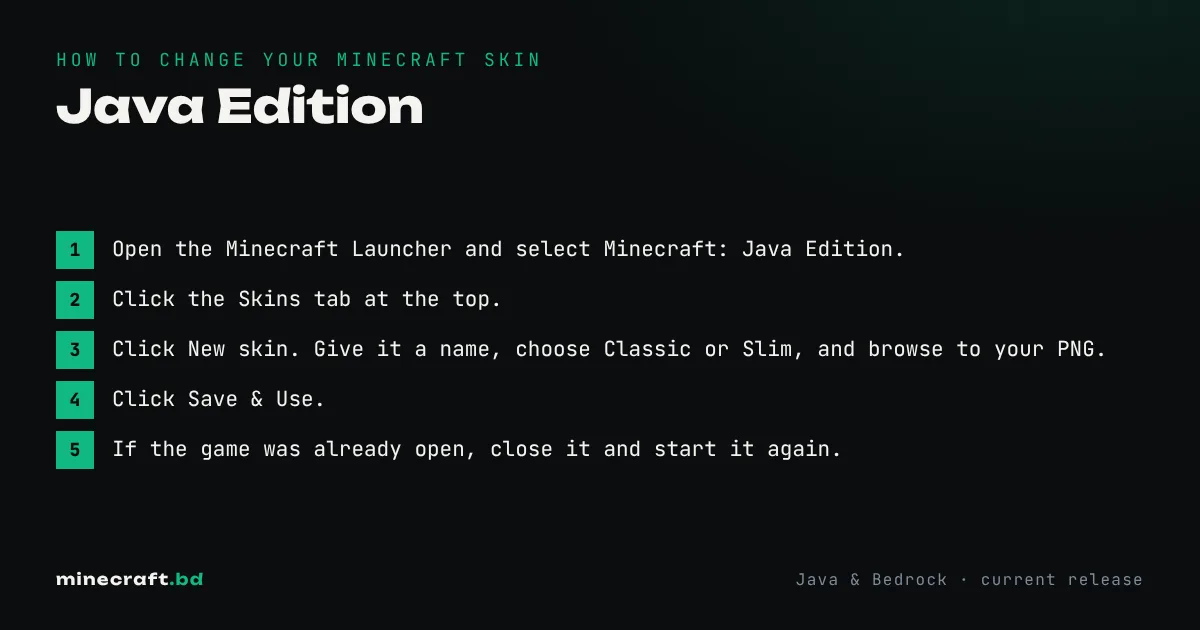
On Java Edition, open the Minecraft Launcher, go to the Skins tab, click New skin, choose your PNG and the arm model, then Save & Use. On Bedrock (Windows, Android or iOS), open the Dressing Room, go to Classic Skins, choose Import under Owned skins, pick your PNG and the arm model. Console players can’t import PNG files; they choose skins in the Dressing Room from the Character Creator and the Marketplace.
You need a skin file first. Download one from a skin site, or make your own with our skin editor guide.
Change your skin on Java Edition
In the launcher (easiest)
- Open the Minecraft Launcher and select Minecraft: Java Edition.
- Click the Skins tab at the top.
- Click New skin. Give it a name (this only labels the skin; to rename yourself, see how to change your Minecraft name), choose Classic or Slim, and browse to your PNG.
- Click Save & Use.
- If the game was already open, close it and start it again.
The launcher keeps a library of your skins, so you can switch back later without re-uploading. If the Skins tab is missing, check the launcher guide; you may be on a different game’s page.
On minecraft.net
Sign in at minecraft.net with your Microsoft account, open your profile, find the Java Edition skin section, upload the PNG and choose the arm model. It’s the same result as the launcher, handy if you’re on a computer without Minecraft installed.
Java accepts 64×64 PNG files, plus the older 64×32 format. Your skin shows on every Java server you join, since servers fetch it from Mojang.
Change your skin on Bedrock (Windows, Android, iOS)
- From the main menu, select Dressing Room.
- Choose the Classic Skins tab (the hanger icon).
- Under Owned, select the blank skin with the Import option, then Choose New Skin.
- Pick your PNG file from your device.
- Choose the arm model: classic (wider arms) or slim (thinner arms).
- Make sure the new skin is selected and equipped before you leave.
Bedrock imports PNGs at 64×64 or 64×32, and also 128×128 for a higher-detail skin. On phones, save the PNG to your gallery or Files app first so the picker can find it.
Consoles (Xbox, PlayStation, Switch)
Consoles don’t have a file picker, so custom PNG skins can’t be imported. Your options are the Character Creator in the Dressing Room (build a character from free and paid parts) and Marketplace skin packs, some free and some paid with Minecoins. Marketplace purchases are tied to your Microsoft account, so they generally carry over to your other Bedrock devices when you sign in.
Classic or slim?
The only difference is arm width: classic arms are 4 pixels wide, slim arms are 3. A skin is drawn for one or the other. Choose the wrong one and you’ll see a gap or a smeared stripe down each arm, so if your skin looks odd, switch the model and upload again. Most skin sites label which model a skin uses.
Download safely
A skin is a PNG image and nothing more. Don’t install skin “installer” programs, don’t log into skin websites with your Microsoft password, and be wary of any site asking you to download an .exe. If someone has changed your skin without your permission, change your password and check your account security; the accounts and security hub explains how. Capes are separate from skins and can’t be uploaded, but our capes page lists the real ways to get one.
Common questions
Are Minecraft skins free?
Uploading a custom skin is free on both editions. Bedrock's Marketplace also sells skin packs and Character Creator items for Minecoins, but you never have to buy them.
Why hasn't my new skin shown up?
On Java, fully restart the game after changing it. Servers can take a few minutes to pick up the change. On Bedrock, make sure you equipped the imported skin and not just imported it.
Can I use my Java skin on Bedrock?
Yes, but you have to import the same PNG separately on Bedrock. The editions don't share skins.
Sources & verification
Facts on this page are checked against these references and in-game behavior for the stated edition(s). how we verify.
Keep reading