Minecraft Education Login: Which Account and Error Fixes
Sign in to Minecraft Education with the Microsoft 365 account your school gave you, not a personal one. Fixes for no license, login loops, blocked Wi-Fi.
To log in to Minecraft Education, use the Microsoft 365 account your school (or organization) gave you, usually an email address ending in your school’s domain, with the same password you use for school email or Teams. Personal Microsoft accounts (like an Outlook.com or Hotmail address) and regular Minecraft accounts don’t work.
If you have the right account and it still fails, the problem is almost always a missing license or a network setting, and the fixes are below.
How to sign in
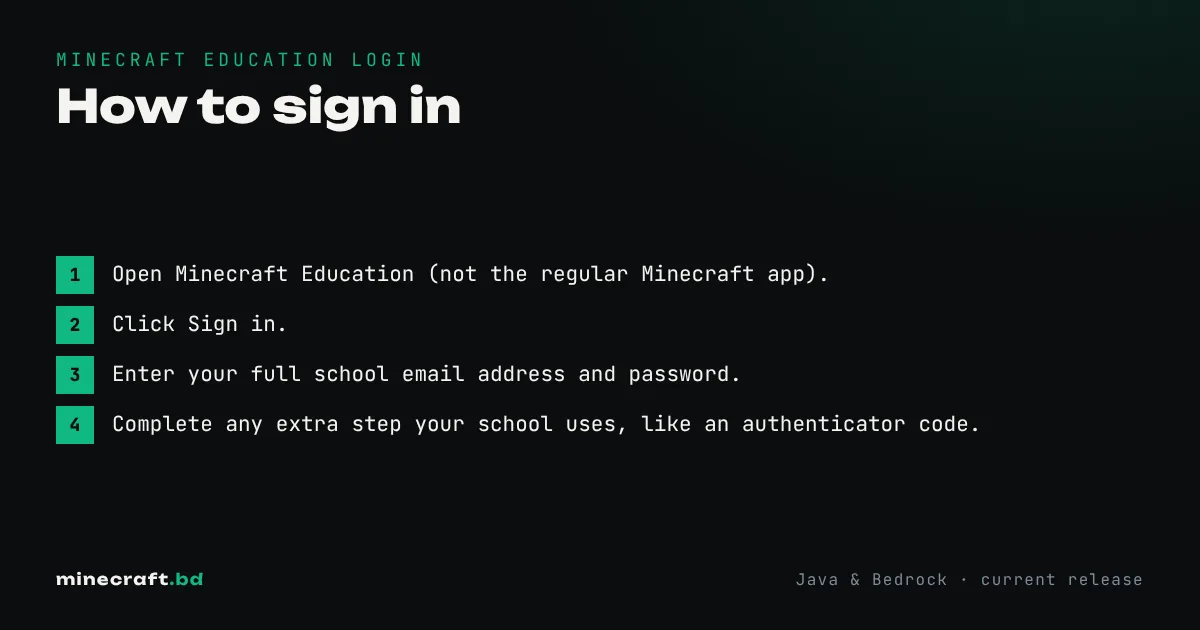
- Open Minecraft Education (not the regular Minecraft app).
- Click Sign in.
- Enter your full school email address and password.
- Complete any extra step your school uses, like an authenticator code.
On shared school devices, sign out at the end of the lesson so the next student isn’t logged in as you.
Common errors and fixes
“We can’t sign you in” or the account isn’t recognized. You’re probably using a personal account. Check that you typed the full school address. If your school uses different emails for students and staff, make sure you’re using the student one.
“You don’t have a license” or the game stops after a few logins. The account works, but no Minecraft Education license is assigned to it, or the free trial has ended. Only an admin can fix this: the school’s IT team assigns licenses in the Microsoft 365 admin center. For families who bought their own licenses, the parent who set up the account is the admin; see the homeschool guide.
The login window loops or closes. Close the app completely and reopen it. If that doesn’t help, sign out of other Microsoft accounts in the device’s browser or settings, then try again. Reinstalling the app clears a broken saved sign-in on most devices. Make sure the app is up to date, since an old version can fail to sign in after an update; download and licensing has the official links.
The whole class can’t sign in at once. This is a school-level problem, not a student one. The usual causes:
- Licenses expired or weren’t renewed.
- A firewall, proxy or content filter blocks the Microsoft sign-in or Minecraft Education services.
- A Microsoft outage.
IT staff should check the network requirements on the Minecraft Education support site.
Signed in but can’t join a classmate’s world. Both students need to be in the same organization, on the same version of Minecraft Education, and usually on the same network. Joining uses a join code rather than a server address. If that’s all fine and it still fails, some of the network advice in can’t connect to a world applies here too.
Lost password or locked account
Minecraft Education uses your school’s account system, so password resets go through your school. Neither Mojang nor Microsoft support can reset a school account for you. If the problem is with a personal Minecraft account instead, that’s a different system; see account migration and recovery.
For an overview of what Minecraft Education is and how classes use it, see Minecraft Education for teachers, or browse the education hub.
Common questions
Can I log in to Minecraft Education with my normal Minecraft account?
No. Minecraft Education only accepts Microsoft 365 school or work accounts, usually the email your school gave you. Personal Microsoft accounts and regular Minecraft logins won't work.
Why does Minecraft Education say I don't have a license?
Your account exists but no Minecraft Education license has been assigned to it, or the trial has run out. Your school's IT admin can assign one in the Microsoft 365 admin center.
Can students share accounts?
They shouldn't. Licenses are per user, and shared accounts mix up students' worlds and portfolios and confuse classroom multiplayer.
Sources & verification
Facts on this page are checked against these references and in-game behavior for the stated edition(s). how we verify.
Keep reading