How to Update Minecraft on Java, Bedrock and Every Device
Java updates itself when you press Play in the launcher; Bedrock updates through your device's store. Fix version mismatch errors and back up worlds first.
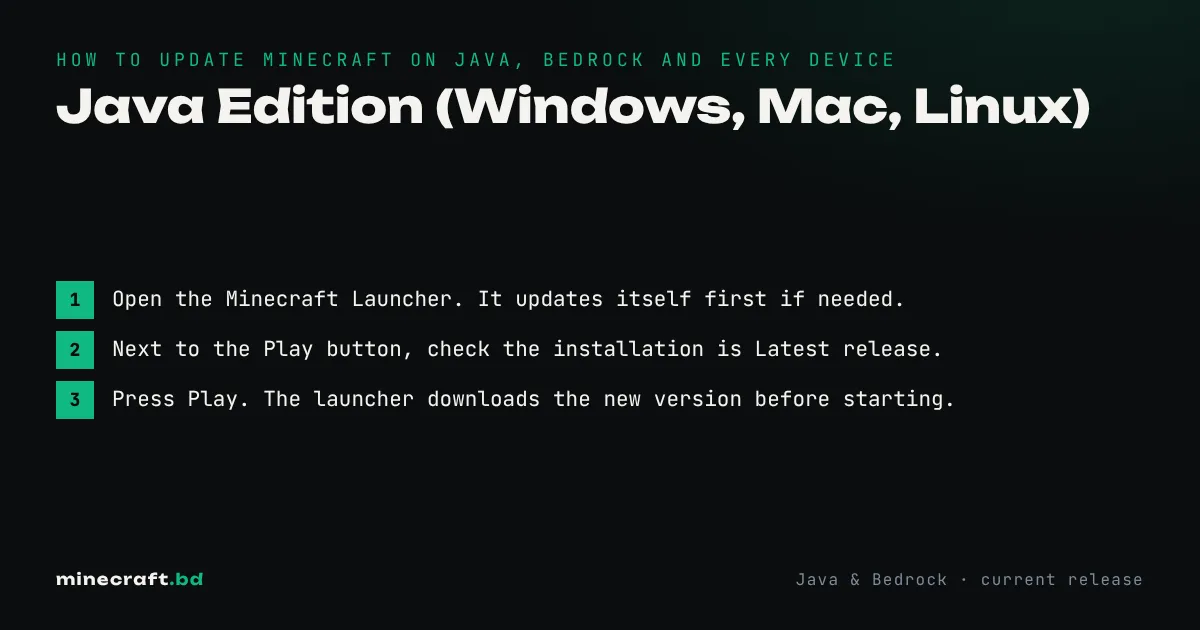
Java Edition updates itself: open the Minecraft Launcher, make sure “Latest release” is selected, and press Play. Bedrock updates through whichever store you bought it from (Microsoft Store, Google Play, App Store or your console’s store). If an update hasn’t arrived, it’s almost always a store setting, not a Minecraft problem.
One thing changed in 2026: Mojang dropped the old 1.x numbering. After 1.21.11 came Java Edition 26.1 (March 24, 2026), and versions are now named by year and release. Our latest Minecraft version page tracks what’s current.
Java Edition (Windows, Mac, Linux)
- Open the Minecraft Launcher. It updates itself first if needed.
- Next to the Play button, check the installation is Latest release.
- Press Play. The launcher downloads the new version before starting.
If you play a custom installation pinned to an older version (common for modded play), it stays on that version until you change it under Installations. That’s a feature: mods need a loader built for each version, so update your modded profile only once your mods have caught up. How to install Minecraft mods explains how to match them.
Bedrock Edition, device by device
| Device | Where updates come from |
|---|---|
| Windows | Minecraft Launcher, or Microsoft Store > Library > Get updates |
| Android and Chromebook | Google Play > profile > Manage apps & device > Updates |
| iPhone and iPad | App Store > your profile picture > scroll to pending updates |
| Xbox | My games & apps > Manage > Updates |
| PlayStation | Game tile > Options > Check for update |
| Switch | Game icon > + button > Software update > Via the Internet |
Turn on auto-updates in your store and you’ll rarely have to think about it.
Back up before a big update
Major updates change world generation and sometimes how blocks are stored. Worlds upgrade fine in normal use, but a backup costs you a minute. On Java, copy the world folder out of the saves folder (the launcher guide shows where it lives). On Bedrock, export the world from its settings screen or keep a copy on a Realm.
Never open an updated world in an older version. Minecraft warns you for a reason, and downgrading can delete chunks or corrupt the save.
When you don’t want the update
On Java you can play almost any old version through the launcher; how to play old versions shows how. Bedrock has no official way to roll back, so if a server you play on hasn’t updated yet, you’ll have to wait for it. Mismatched versions are the most common reason a server won’t let you join.
Common questions
Will updating break my world?
Updating forward is safe in normal use, but always back up first. Opening a world in an older version than it was last saved in is not supported and can corrupt it.
Why does Minecraft say my version is outdated when I join a server?
Your game and the server are on different versions. On Java, create a launcher installation for the server's version. On Bedrock, update the game through your store, because Bedrock servers expect the current release.
Why are Minecraft versions called 26.1 now?
Mojang switched to a year-based numbering scheme in 2026. Java Edition 26.1 came out on March 24, 2026, and followed 1.21.11.
Sources & verification
Facts on this page are checked against these references and in-game behavior for the stated edition(s). how we verify.
Keep reading