How to Find and Use Minecraft Seeds on Java and Bedrock
Type a seed in the Seed field when creating a world, or run /seed on Java to find yours. How to find and use Minecraft seeds and check one on a seed map.
To use a seed, type it into the Seed field when you create a new world: on Java it’s on the More tab of the Create New World screen, on Bedrock it’s under Advanced in Create New World. To find the seed of a world you already have, type /seed on Java or check the world’s settings on Bedrock. Before you start a long survival world on someone else’s seed, check it on a seed map for your exact version first.
If you want the theory first, what is a Minecraft seed? explains why edition and version matter so much.
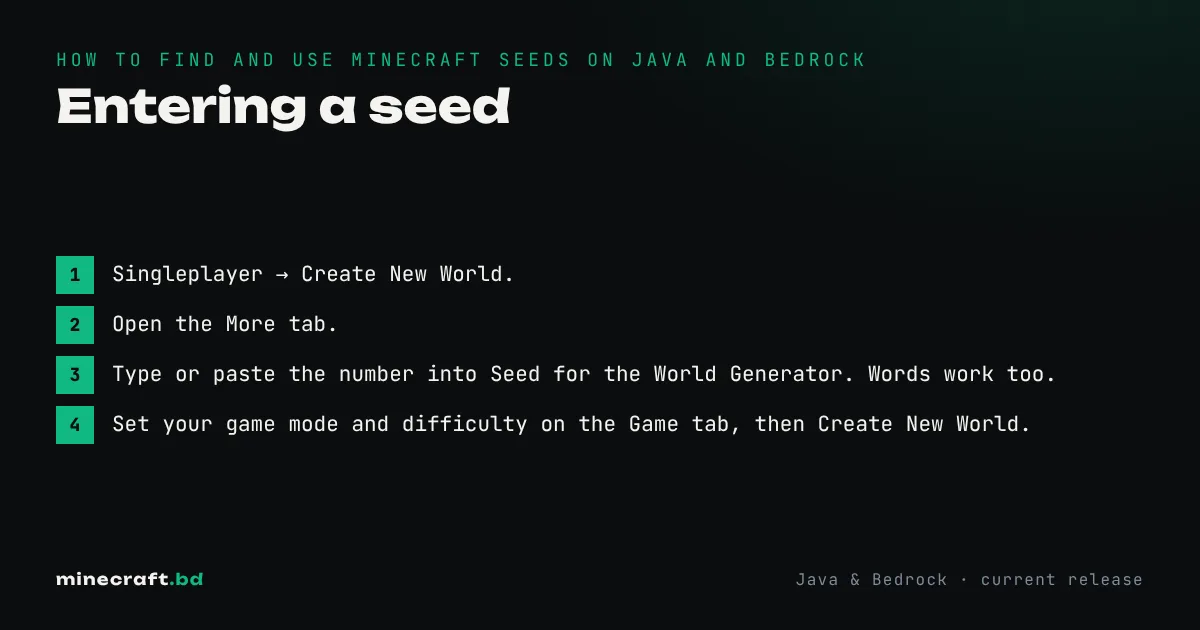
Entering a seed
Java Edition
- Singleplayer → Create New World.
- Open the More tab.
- Type or paste the number into Seed for the World Generator. Words work too.
- Set your game mode and difficulty on the Game tab, then Create New World.
Make sure you’re launching the version the seed was made for. If it’s for an older release, create a matching installation in the launcher first; how to play old versions shows how.
Bedrock Edition
- Play → Create New → Create New World.
- Scroll to the Advanced section.
- Enter the number in Seed.
- Create the world.
Finding the seed of an existing world
Java: type /seed in chat. In single-player it works even if cheats are off. Click the number in chat to copy it. On a server, you need operator permission.
Bedrock: from the world list, click the pencil (edit) icon next to the world. The seed is shown in the world’s settings and can be copied from there.
Write it down somewhere with the edition and version. Future you, or a friend, will want all three.
Checking a seed before you commit
A shared seed is only as good as the details that come with it. Here’s how to check one in a couple of minutes:
- Get the edition, version and coordinates of whatever made the seed worth sharing (“woodland mansion at 300, -1200 on Java 1.21.4”).
- Open a seed map. Community tools such as Chunkbase draw a seed’s biomes and structure locations in your browser. Choose the right edition and version from the dropdowns. A map set to the wrong version is wrong, quietly.
- Look at the coordinates you were given and see if the structure or biome really is there.
- Or test it in-game. Make a throwaway creative world with the seed, and use /locate to jump to the nearest village, temple or biome and fly over.
Seed maps are reliable for biome layout and for where structures can spawn. They’re less reliable for small details like individual trees, chest contents or exactly which buildings a village has, since those depend on more than the seed.
Planning around a seed
Once you trust a seed, use the map to plan: a base near a river and a village, the nearest stronghold for the End, an ocean monument for a guardian farm later. If you’re joining a friend’s world, there’s no need to scout ahead. Half the fun is finding things yourself, and nobody likes a spoiler. The seeds hub has the rest of the section.
Common questions
Can I change a world's seed after creating it?
No. The seed is fixed when the world is made, and chunks you've already explored stay as they are. Start a new world with the seed you want instead.
How do I see the seed on a server?
The /seed command needs operator permission on a server, and many servers hide the seed on purpose. Ask the owner, or just play the world as it is.
Why doesn't a shared seed match what the video showed?
Almost always a different edition or version. Check both, then check the coordinates they gave. Java and Bedrock share terrain but place structures differently.
Sources & verification
Facts on this page are checked against these references and in-game behavior for the stated edition(s). how we verify.
Keep reading